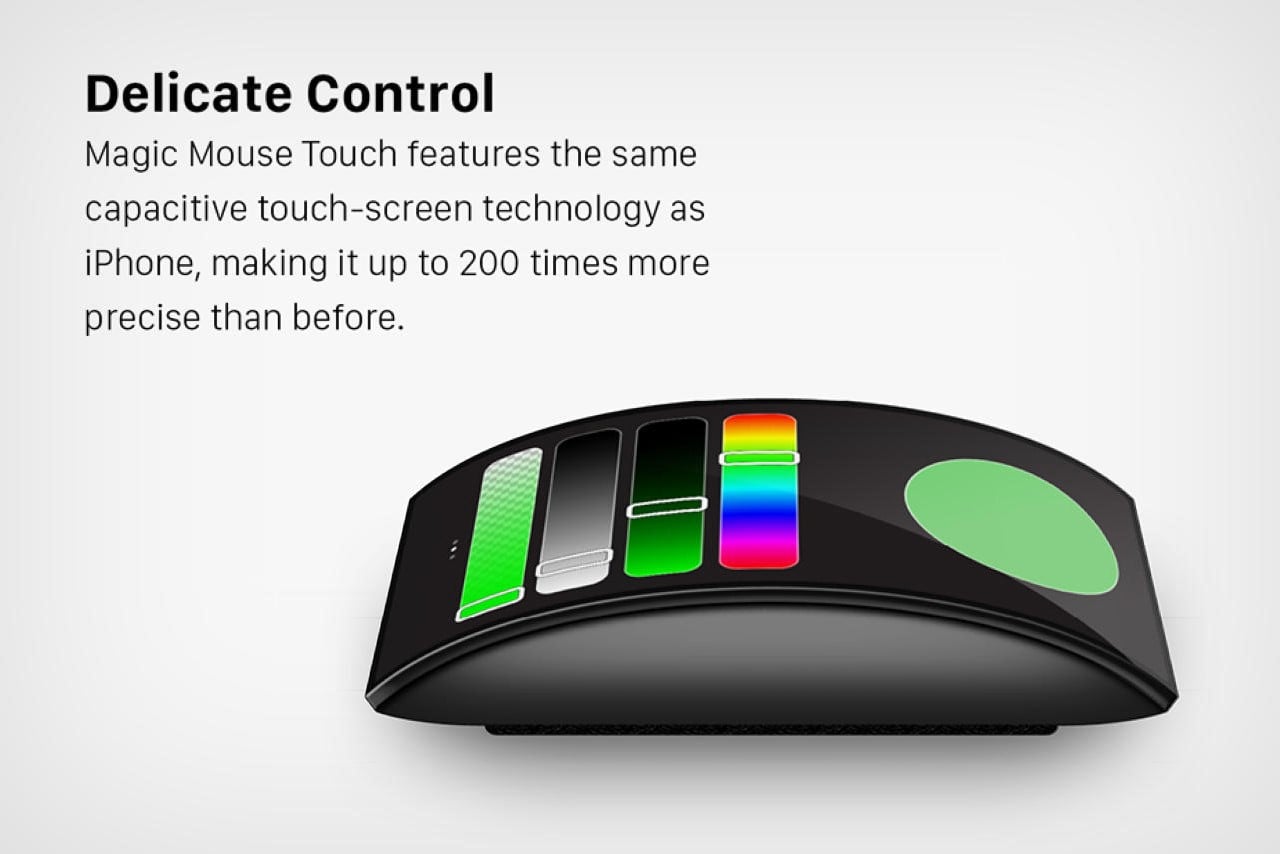
It was supposed to be revolutionary: a mouse with a touchscreen interface, gesture controls, app integration, and customizable zones. I bought it expecting a leap forward in productivity. Instead, I got a desk ornament that drains batteries, crashes mid-click, and demands more attention than my actual work.
This isn’t just disappointment. This is the cost of over-engineering—a case study in how adding features without solving real problems creates more friction than function. If you’re considering a touchscreen mouse, especially one branded as “smart” or “next-gen,” let this be your warning.
The Promise: Why Touchscreen Mice Exist
Manufacturers sell touchscreen mice as productivity accelerators. The idea is simple: replace physical side buttons with a dynamic screen that adapts to your app. Need undo/redo in Photoshop? Tap the screen. Want to scroll through Excel sheets with flick gestures? Done. Adjust volume or brightness without touching your keyboard? That’s the pitch.
On paper, it’s elegant. A single input device that evolves with your workflow. But elegance collapses the moment you try to use it in real conditions.
I tested one of the most popular models—$130, Bluetooth + USB-C, advertised as "perfect for creatives and power users." Within a week, I was ready to throw it across the room.
Where It Falls Apart: Responsiveness and Latency
Touchscreens on phones and tablets work because they’re optimized at the hardware and software level. A mouse? Not so much.
The touchscreen on this device suffers from noticeable input lag. A tap doesn’t register instantly. Sometimes it takes 200ms—enough to make you double-tap, triggering an unwanted command. In fast-paced workflows like video editing or coding, that delay is fatal.
Real-World Example: Editing Under Pressure I was trimming a timeline in DaVinci Resolve. I tapped the “split clip” gesture on the mouse screen. Nothing happened. I tapped again—now it registered twice. Two clip splits, out of sync. I had to zoom in, delete, re-cut. Lost two minutes. Multiply that by five times a day, and you’re losing 10–15 minutes daily to a gadget meant to save time.
Compare that to a physical shortcut key: immediate, tactile feedback, zero ambiguity. The touchscreen mouse doesn’t just fail here—it actively disrupts.
Battery Life: The Hidden Tax of Touch
Touchscreens consume power. Even a small 1.5-inch display saps battery life fast. This mouse claims “up to 14 days” on a charge. In practice? With moderate use (6–8 hours a day, touch features active), I got 3.5 days.
Worse, it doesn’t warn you reliably. One morning, the screen was black. No haptics, no lights. Dead. I had to plug it in—USB-C charging takes 90 minutes. During that time, I couldn’t work seamlessly. No Bluetooth reconnection. No fallback mode.
Meanwhile, my standard ergonomic mouse has lasted nine months on two AAs.
| Feature | Touchscreen Mouse | Standard Mouse |
|---|---|---|
| Battery Life | 3–5 days (active use) | 6–12 months |
| Charging Time | 90 mins | Replace batteries in 10 secs |
| Idle Drain | High (touch IC always active) | Negligible |
| Reliability | Drops connection when low | Stable until dead |
This isn’t just inconvenient. It’s a workflow killer. You shouldn’t have to manage your mouse like a smartphone.
Software Bloat and Compatibility Gaps
The touchscreen requires proprietary software to function. No app? The screen defaults to static shortcuts. Want dynamic app-specific controls? You need the companion app running in the background.
Here’s what that means in practice:
- The app crashes on Windows updates.
- It doesn’t support Linux at all.
- On macOS, it asks for five different permissions, including accessibility access (a red flag for privacy).
- Profiles don’t sync across devices.
I use three machines: a Windows desktop, MacBook Pro, and Ubuntu laptop. The mouse only works “fully” on Windows. On Mac, gesture mapping is limited. On Linux? It’s just a basic pointer with a useless screen.
And when the app freezes—and it does, often—restarting it doesn’t always restore touch functionality. I’ve had to unplug, reboot, and re-pair multiple times in a single session.
Common Mistake: Assuming plug-and-play usability. Most users think, “It’s a mouse. It’ll work like any other.” But this device behaves more like a mini smart device—fragile, dependent, and high-maintenance.
Ergonomics: Style Over Substance
The mouse has a sleek, angular design with the touchscreen tilted slightly upward for visibility. Sounds smart. Feels awful.
After two hours, my index finger aches from hovering over the screen. Accidental touches trigger actions when I’m just repositioning my hand. The screen’s glass surface is slippery—my finger slides unless I’m deliberate, which slows me down.
Compare that to a physical scroll wheel or side buttons: muscle memory takes over. You don’t look. You don’t think. You act.
This touchscreen mouse forces you to look and aim. It breaks the flow.
Workflow Tip: Disable Touch
When It’s Not Critical I now keep the touchscreen disabled in the app and only turn it on for specific tasks. But that defeats the entire purpose. If I have to manually toggle features, I might as well use keyboard shortcuts.
Who Is This Actually For?
There’s a myth that “power users” need more controls. But real power users value efficiency, reliability, and speed—not novelty.
Touchscreen mice might appeal to:
- Curious experimenters who enjoy tweaking settings for fun.
- Designers who want app-specific macros (if the software actually worked).
- People who prioritize aesthetics over function.
But for anyone doing focused work—writing, coding, editing, data entry—this device introduces more variables than benefits.
I watched a colleague try it during a coding sprint. He mapped the screen to common terminal commands. First day: exciting. Second day: frustration. The touchscreen registered a “clear screen” tap when he accidentally brushed it while typing. Lost his entire command history. He switched back to a Logitech MX Anywhere by lunch.
The Bigger Problem: Misunderstanding User Needs
This isn’t just about one bad product. It’s a symptom of a deeper issue in tech design: adding features without solving pain points.
No one was begging for a touchscreen on a mouse. We were asking for better battery life, more reliable connections, lighter weight, quieter clicks. Instead, we got a screen that does what keyboard shortcuts already do—slower and less reliably.
True innovation reduces friction. This adds it.
Companies confuse “advanced” with “better.” But complexity without purpose is just clutter.
Better Alternatives: What Actually Works
If you want enhanced control without the headache, here are five proven alternatives—each solving real problems without over-engineering:
| Option | Key Benefit | Best For |
|---|---|---|
| Logitech MX Master 3S | Ultra-precise scroll, silent clicks, customizable buttons | Long work sessions, precision tasks |
| Microsoft Sculpt Ergonomic | Natural hand posture, split design | Reducing wrist strain |
| Corsair Darkslayer | Mechanical switch buttons, durable | Gamers or heavy-click users |
| Elecom EX-G | Vertical design, low drag | Users with RSI or carpal tunnel |
| Kensington Expert Wireless | Trackball design, no surface needed | Small desks or travel |
None of these have screens. All of them work flawlessly out of the box. All last weeks or months on a charge. All integrate across operating systems.
The Verdict: A Solution in Search of a Problem
This touchscreen mouse isn’t just flawed—it’s fundamentally misguided. It takes a simple, reliable tool and turns it into a high-maintenance gadget.
It fails on core usability: battery, responsiveness, compatibility, ergonomics. The touchscreen adds novelty, not value. The software is unstable. The design prioritizes looks over comfort.
You don’t need a smarter mouse. You need a mouse that doesn’t get in the way.
Final Advice: Test Before You Invest
If you’re tempted by flashy features, ask:
- Does this solve a problem I actually have?
- Can I use it across all my devices?
- How much time will I spend managing it vs. using it?
- Is there a simpler alternative that does 80% of what I need?
In my case, the answer to all four was “no.” I returned the touchscreen mouse and went back to a $60 Logitech with physical buttons. My workflow improved instantly.
Innovation should serve you—not demand your attention.
Stop chasing features. Start protecting your focus.
FAQ
What should you look for in This Touchscreen Mouse Is My Over-Engineering Nightmare? Focus on relevance, practical value, and how well the solution matches real user intent.
Is This Touchscreen Mouse Is My Over-Engineering Nightmare suitable for beginners? That depends on the workflow, but a clear step-by-step approach usually makes it easier to start.
How do you compare options around
This Touchscreen Mouse Is My Over-Engineering Nightmare? Compare features, trust signals, limitations, pricing, and ease of implementation.
What mistakes should you avoid? Avoid generic choices, weak validation, and decisions based only on marketing claims.
What is the next best step? Shortlist the most relevant options, validate them quickly, and refine from real-world results.